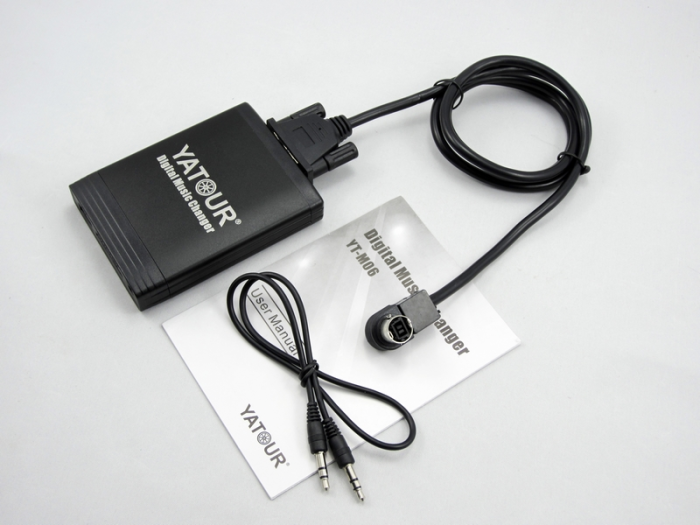
Music for Yatour

We help process your tracks and organize them into the right folders — ready to copy to a USB drive.

  1. 1Choose music
  2. 2Settings
  3. 3Find duplicates
  4. 4Prepare files
  5. 5Processing

Drop a folder here

You can also copy, then press Ctrl / ⌘ + V

Works without internet. Music is processed right on your device. Your originals stay unchanged.

Help
Yatour music preparation guides
How to add music

Can’t choose a folder? Drag it here, or copy and paste it.

Ctrl+V / ⌘V and drag and drop add files to your selection. Folder paste support depends on your browser and OS.

How to copy to USB or SD

Extract the ZIP and copy CD folders to the USB/SD root. Your OS may create hidden files after extraction; check the drive before use.

Compatibility

Folder, track and filesystem limits depend on your adapter and head unit. Check your model’s manual.

Formats

CBR MP3 keeps its bitrate, sample rate and mono/stereo channels. VBR/ABR becomes CBR at the next supported bitrate at or above its measured average, retaining rate and channels. WMA is probed on export and converted individually; missing bitrate uses 128 kbit/s. Unsupported rates or more than two channels are rejected. Re-encoding may reduce quality; playback is not guaranteed.

Privacy

Processing happens in your browser. Music and filenames are never uploaded.

Folders and names

Nested folders join their top-level group. Cyrillic names are transliterated, decorative letters normalized and other characters replaced. Unreadable names become track.mp3; duplicates receive -2, -3… Tags and artwork are removed. Originals stay unchanged.